
Book Appointment Now

🔧 How to Replace Your Temporary Link with Your Primary Domain (Using phpMyAdmin)
2 min read
When launching your website, it’s common to use a temporary domain provided by your hosting company. But once your main domain is ready, you need to update all database references. This guide shows you exactly how to do it—safely and easily.
🛡️ Step 1: Backup Your Database #
- Login to phpMyAdmin from your hosting control panel (e.g., cPanel or DirectAdmin).
- On the left sidebar, click on your database name.
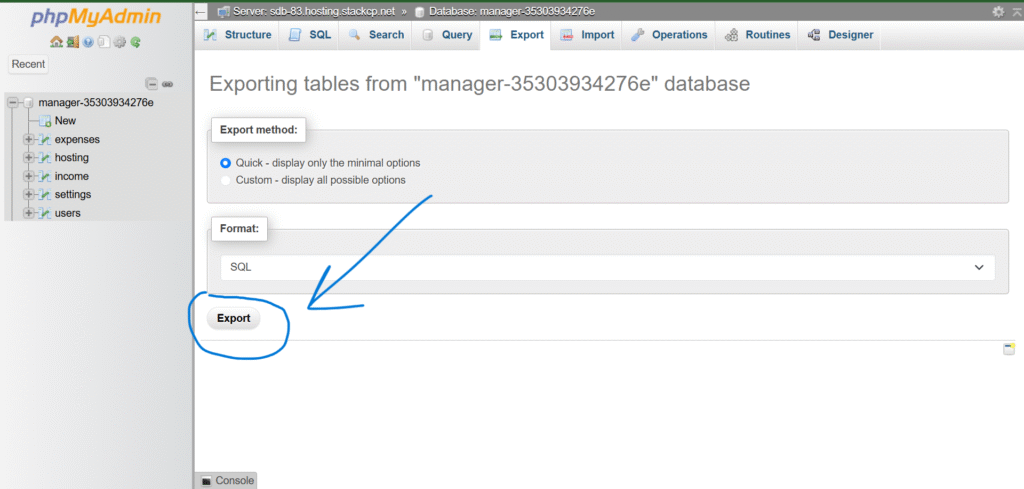
- From the top menu, choose “Export”.
- Choose the Quick export method and SQL as the format.
- Click Go to download the
.sqlfile.
🔒 Important: Save a backup of this file before making any changes. Keep it in a safe place.


✏️ Step 2: Edit the SQL File #
- Open the
.sqlfile with Notepad++ (free and easy to use). - Press
Ctrl + Hto open the Replace window. - Click on the “Replace” tab.

Here’s what to do:
- Find what: Type your temporary link
👉 Example:mywebsite-com.templink.com - Replace with: Type your primary domain name
👉 Example:mywebsite.com
- Click “Replace All” to update every instance of the temporary link to the primary one.

💾 Step 3: Save the File #
- Go to
File > Save As...and save the updated file with a new name to avoid overwriting the original.- Example:
mywebsite_updated.sql
- Example:
📥 Step 4: Import the Updated Database #
- Go back to phpMyAdmin.
- If needed, delete the old database or create a new one.
- Select the new/empty database.
- From the top menu, choose “Import”.
- Choose your updated
.sqlfile and click Go.
✅ Step 5: Test Your Website #
- Visit your main domain (e.g.,
https://mywebsite.com). - If everything was done correctly, your website should now load properly using your primary domain, and all internal links should work as expected.
🧠 Tips and Notes #
- If you see broken images or links, clear your browser cache or reset permalinks from your WordPress dashboard.
- If you’re using a WordPress site, also check
wp-config.phpfor hardcoded URLs (optional). - Make sure Site URL and Home URL in the
wp_optionstable match your primary domain.
If you need a safe tool that can help automate search & replace in a WordPress database (without exporting/importing), you can also look into:
Updated on June 13, 2025


Powered by BetterDocs